Exporting
Exporting downloads the open document as a file. Choose the format by what you want to do with it: keep it, read it, publish it, or feed it into a data portal.
Export a document
- Open the document.
- Click Validate first and fix any errors. See Checking your document.
- Click Export.
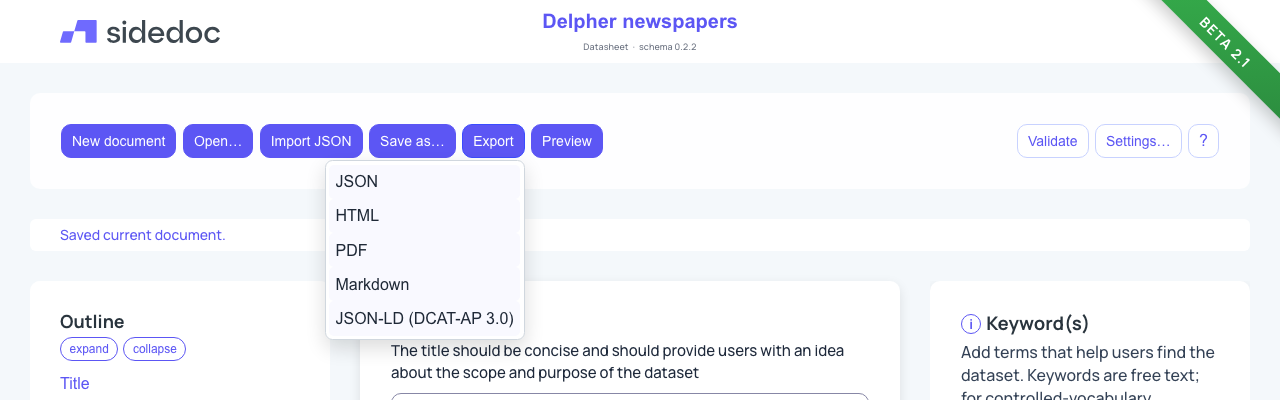
- Choose a format. The file is downloaded to your computer, named after the document.
Which format to choose
| Format | File | What it is for |
|---|---|---|
| JSON | .json | The complete document in SideDoc's own format, with everything you entered in every language. Use it as your backup, to move a document to another computer or browser, and to share it with a colleague who also uses SideDoc. It is the only format you can import again. |
| HTML | .html | The datasheet as a web page. Open it in any browser, put it on your website, or attach it to the dataset in a repository. |
.pdf | The same datasheet as a PDF, for printing, archiving or sending to people who don't use SideDoc. | |
| Markdown | .md | The datasheet as plain text with simple formatting. Useful for a README file next to the data, for example on GitHub or Zenodo. |
| JSON-LD (DCAT-AP 3.0) | .jsonld | A machine-readable description in the European DCAT-AP standard, as linked data. Use it to publish your dataset description to a data portal or catalogue that accepts DCAT-AP. |
| JSON-LD (NDE, schema.org) | .jsonld | A machine-readable description in the form the Dutch Netwerk Digitaal Erfgoed (NDE) dataset register expects, based on schema.org. Only for documents made with an NDE profile. |
Which JSON-LD options the menu shows depends on the profile of the document:
| Profile | JSON-LD options |
|---|---|
| Datasheet v2.1, Datasheet v2 | DCAT-AP 3.0 |
| DCAT-AP 3.0.1 Dataset | DCAT-AP 3.0 |
| NDE Datasetbeschrijving, NDE Catalogusbeschrijving | NDE, schema.org (first) and DCAT-AP 3.0 |
| Data Envelope v1 | none |
When a document refers to another dataset that is also a document in your workspace, for example a data catalog that lists its datasets, the JSON-LD export includes the description of that dataset as well. Datasets that are not in your workspace stay as a link.
WARNING
JSON-LD is a one-way translation. Not every field has a place in DCAT-AP or schema.org, so some information is left out, and the file can't be imported back into SideDoc. Always keep the JSON export as well, and check the result with the portal or register you are sending it to.
Preview before you export
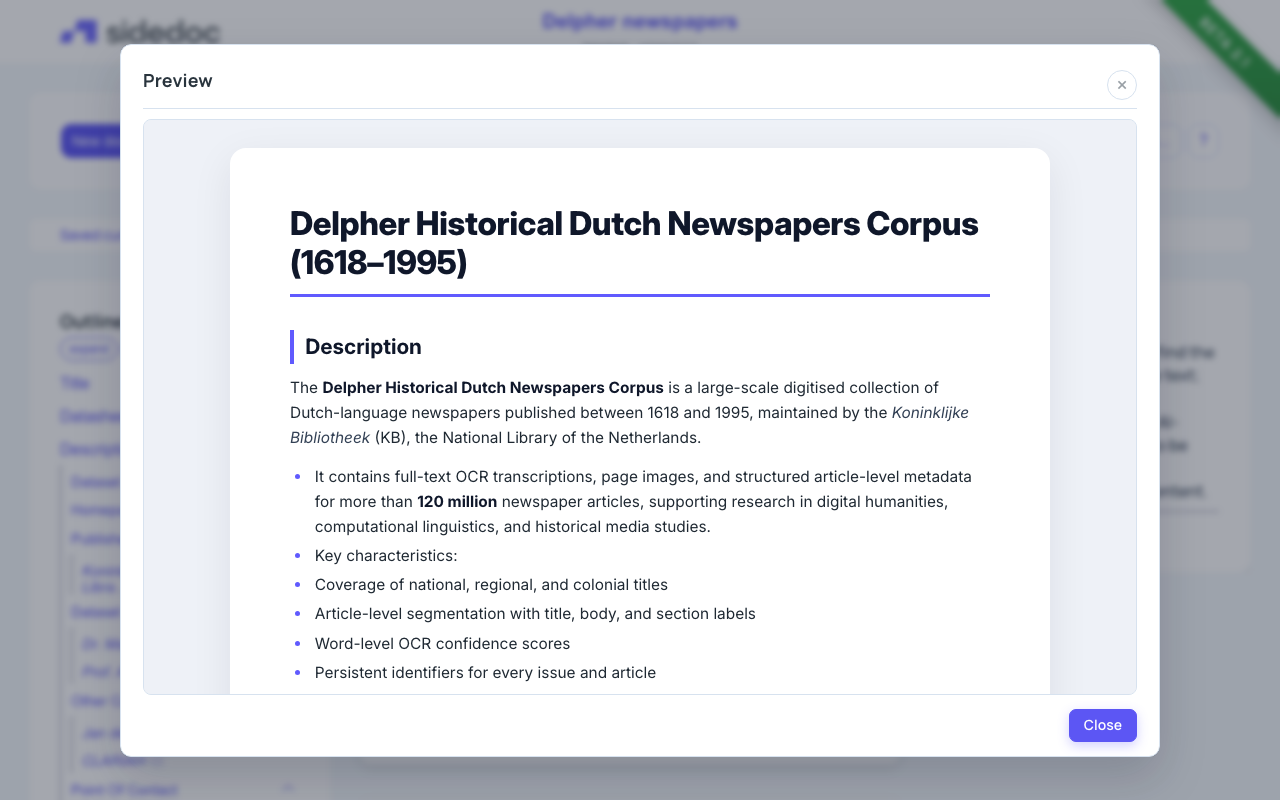
Click Preview to see the document as a formatted datasheet without downloading anything. This is the same layout as the HTML and PDF exports. Close the preview with Close or the Esc key.
Tips
- Export to JSON regularly. Your documents are stored in your browser, and the JSON file is a copy you control. To keep a copy of all documents at once, set up backups in Settings…. See Saving and your data.
- To find out where a particular field ends up in DCAT-AP or schema.org, open the help panel for that field and look under More: examples and details, In exports.
- If an export fails, the status line shows "Export failed:" with the reason.