Importing
You can import a SideDoc document that was saved as a JSON file: one you exported earlier, one a colleague sent you, or an example document. The imported document is added to your documents in this browser.
Import a JSON file
- Click Import JSON in the toolbar.
- Choose the
.jsonfile on your computer.
The Open document window has the same button, ⬆ Import JSON, in its bottom left corner.
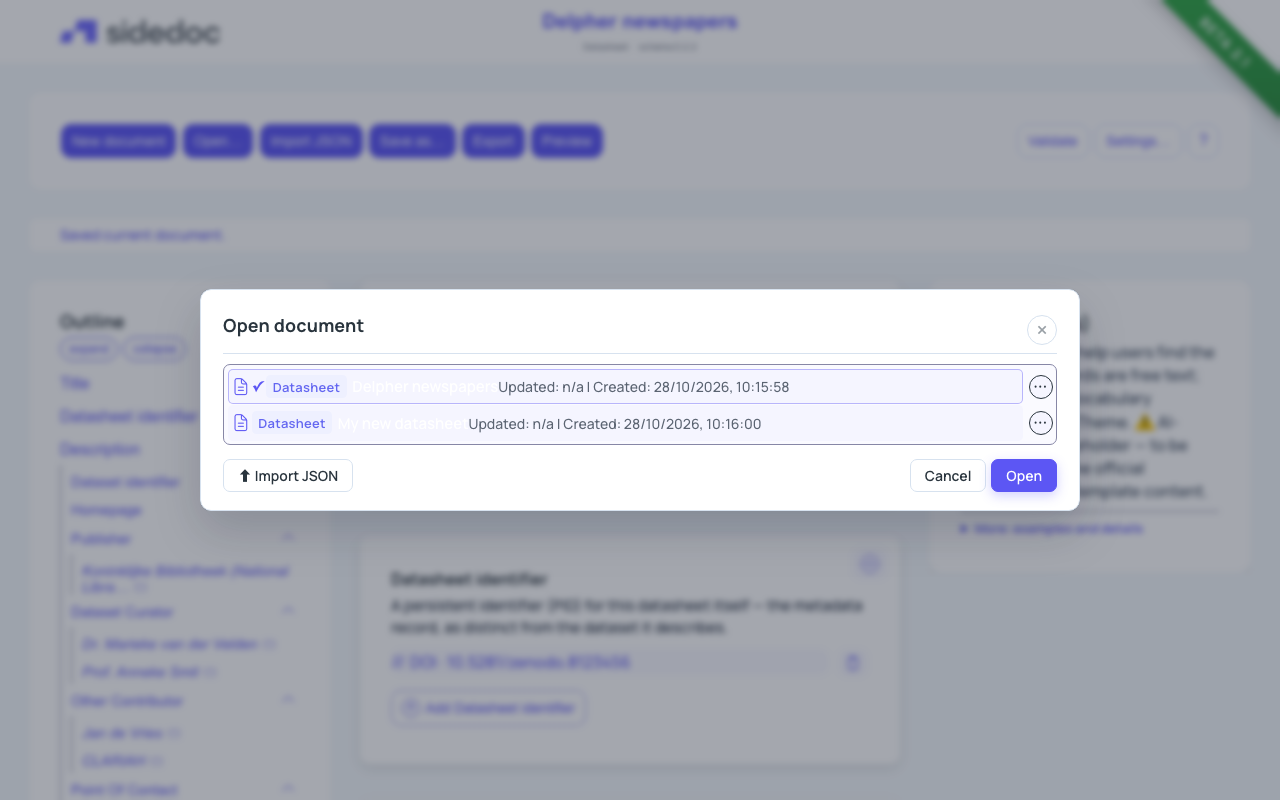
SideDoc opens the document straight away and says "Imported file name." in the status line. The document gets the name of the file. Click the name in the header to change it.
If you have unsaved changes in the document you are working on, SideDoc first asks whether to save them. Choose Save, Ignore changes or Cancel.
Importing the same document twice
If the file matches a document you already have, SideDoc asks what to do:
- Open existing opens the document you already have and ignores the file.
- Import as new copy adds the file as a second, separate document.
- Cancel does nothing.
Older documents
Datasheets made with an older version of SideDoc are converted to the current version as they are imported. Documents in other profiles are imported as they are; if they use an older schema version, you can upgrade them with the Convert to button in the header. See Documents made with an older version.
What you can't import
- JSON-LD exports. An export to DCAT-AP or schema.org is a one-way translation and can't be turned back into a SideDoc document. SideDoc recognises these files and tells you to open the original
.jsonfile instead. - HTML, PDF and Markdown exports. These are for reading only.
- Other file types. SideDoc only reads its own JSON format.
Importing a reference
To bring in a bibliographic reference, you don't import a file. Open the reference in the form and paste its BibTeX record with Import BibTeX…. See References and citations.
Tips
- Always keep the JSON export of a finished document. It is the only format you can import again.
- If an import fails, SideDoc shows "Import failed:" followed by the reason. The most common cause is a file that is not valid JSON, for example because it was edited by hand.