Getting help in the form
SideDoc explains every field where you need it. The help comes in four levels, from a one-line hint to worked examples. Start with the short text and go deeper only when you need to.
The four levels
1. Hover text
Hold your mouse over one of the buttons under Add optional fields to see a one-line hint about that field before you add it. This helps you decide whether a field is relevant at all.
2. The short text under the field name
Every field shows a sentence or two directly under its name, for example "Free-text keywords describing the dataset." This tells you what the field is for. For most fields this is all you need.
3. The help panel
The panel on the right of the screen gives fuller guidance for the field you are working in: what to write, how detailed to be, and how this field differs from similar ones. It follows you through the form. Click or tab into a field, or choose a field in the outline, and the panel shows that field's help.
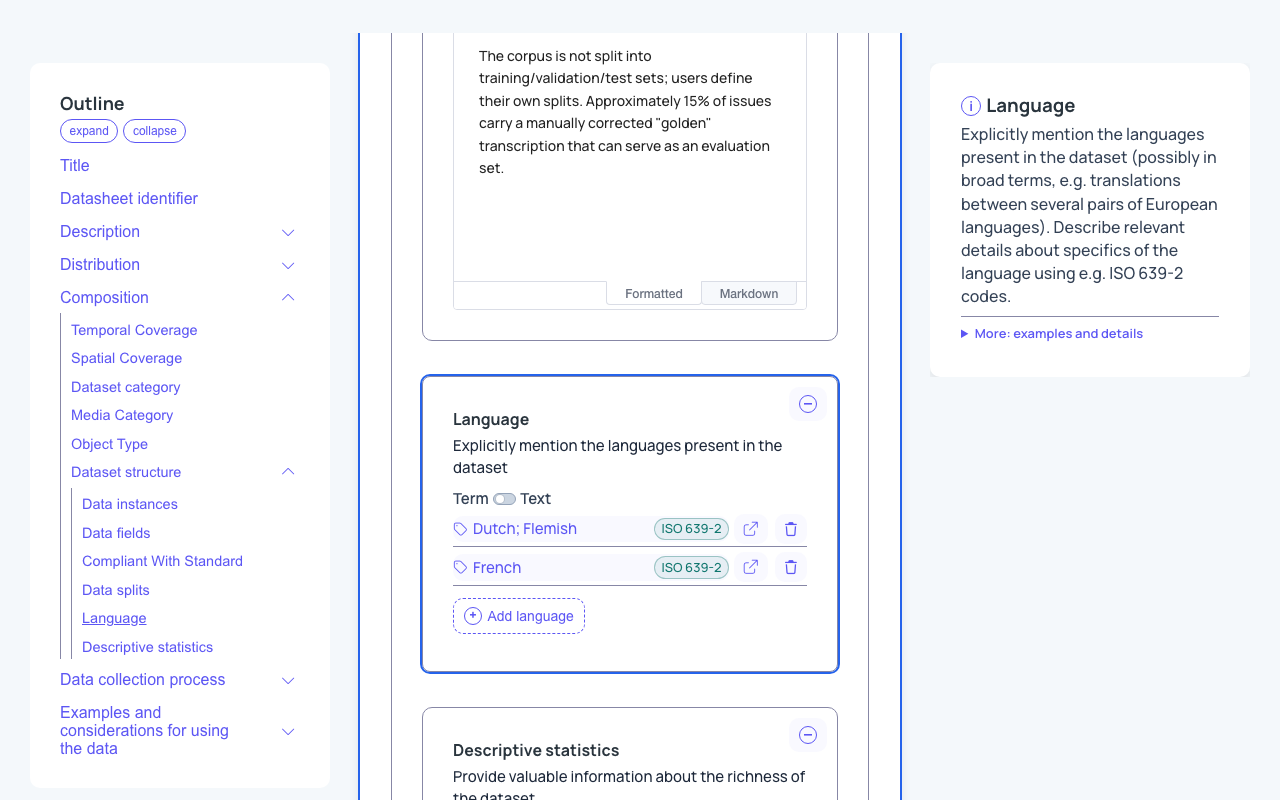
When you have not selected a field yet, the panel shows general advice for the document. If a field has no written guidance yet, the panel says "No documentation available for this field."
On a smaller screen the help panel is hidden. Tap Help at the bottom of the screen to open it.
4. More: examples and details
Under the help text, many fields have a link More: examples and details. Click it to open more information:
- Examples: good values for this field.
- Avoid: common mistakes, with an explanation of what is wrong.
- Notes: extra advice.
- Field rules: the formal rules for the field, such as whether it is required, whether you can add several values (Values), whether to write one value per language (Languages), the expected format, which identifier types are accepted, and which vocabulary the terms come from.
- In exports: where this field ends up when you export the document, for example in DCAT-AP.
- See also: links to related information, including the field's page in the profile reference.
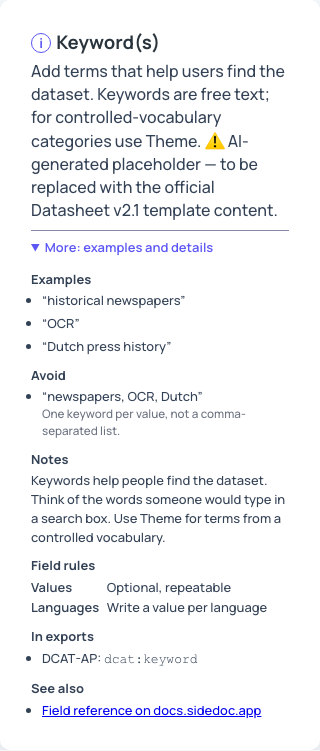
Once you open More, it stays open as you move from field to field. Click the link again to close it.
Help inside a separate window
Agents, references and other larger entries open in their own window. That window has its own help box at the top, which shows guidance for the part of the window you are working in.
The ? button
The ? button at the right end of the toolbar shows a short summary of what the toolbar buttons do. Click Close to hide it.
Tips
- Reading the examples under More is the quickest way to understand what a field expects. The Avoid list shows mistakes that are easy to make, such as typing several keywords in one value.
- If Validate reports a problem with a field, look at its Field rules first: they describe what the field accepts.
- The full field reference, with every field of every profile, is in Profiles & schemas.