Saving and your data
SideDoc saves your work automatically, in your own browser. This page explains where your documents are kept, how to make copies and backups, and how to tidy up. Backups and Reset are in the Settings window, described in Settings and backups.
Automatic saving
You don't need to save. About one and a half seconds after you stop typing, SideDoc saves the document and the status line says "Saved current document."
If you try to close the tab or reload the page in the short moment before a change is saved, your browser asks whether you want to leave. Choose to stay, wait a moment, and try again.
Where your documents are kept
The copy you edit is stored in your browser's storage for the SideDoc website. This means:
- Reloading the page or restarting the computer is safe. When you come back, the Welcome page lists your most recent documents, and Open… lists all of them.
- Your documents are tied to one browser on one computer. If you open SideDoc in another browser, on another computer, or in another browser profile, you won't see them there.
- Private or incognito windows forget everything when you close them.
- Clearing your browser's history or site data can delete your documents. Some organisations clear browser data automatically when you log off. Ask your IT department if you are unsure.
So keep copies of the documents you care about. See Make a backup.
Make a backup
There are two ways:
- All documents at once: set up backups in Settings…. SideDoc copies your whole workspace to your Google Drive, an S3-compatible bucket or a folder on your computer: when you click Back up now, and automatically every 5 minutes and once a day while you are connected. You can restore a backup in this browser or in another one. See Backups.
- One document: open it, click Export and choose JSON. Store the file somewhere safe, such as a network drive, your organisation's document system or a cloud folder. To restore the document later, or to continue on another computer, import the file.
Make a copy
Use Save as… to keep the current state of a document before you make big changes, or to start a new description from an existing one.
- Click Save as….
- Type a name for the copy. SideDoc suggests the current name followed by "(Copy)".
- Click Save as.
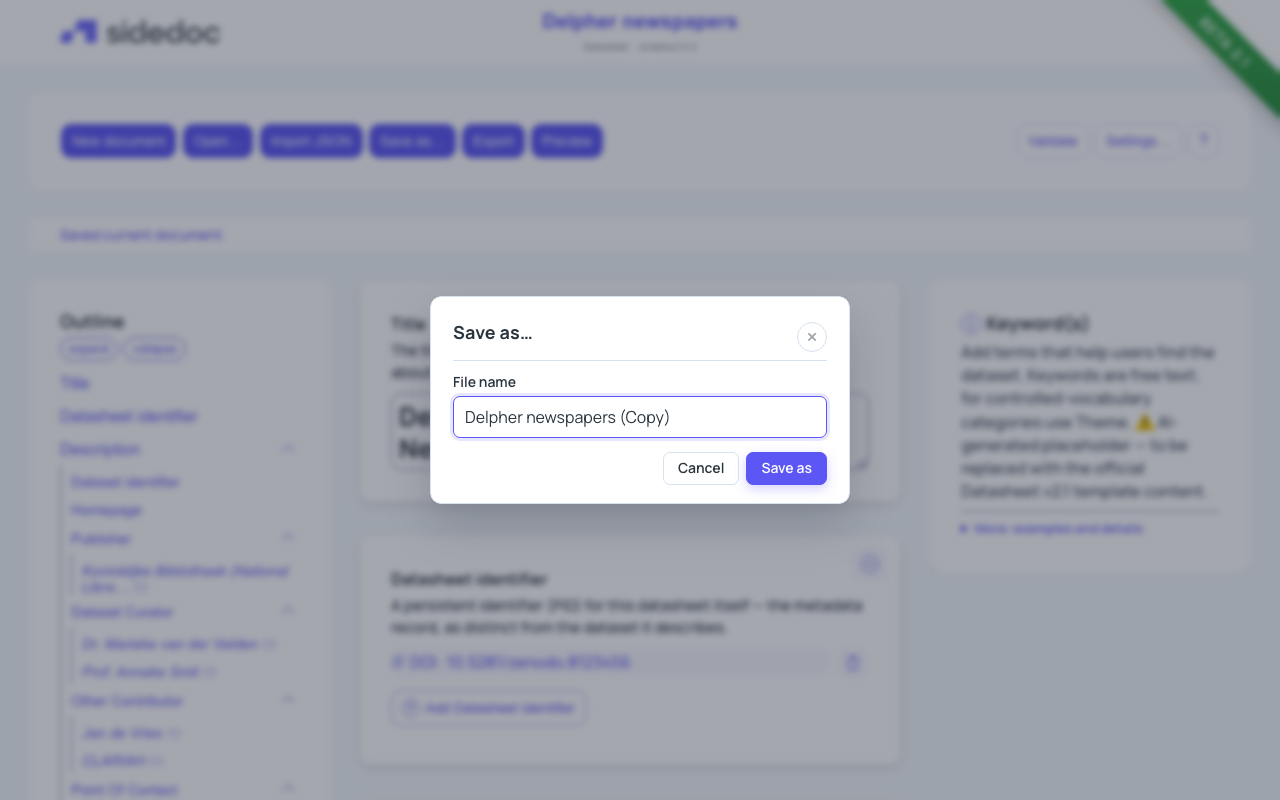
The copy opens, so from now on you are editing the copy. The original stays as it was. You find both under Open….
Rename, copy or delete a document
- Rename the open document: click its name in the header, type the new name and confirm.
- Rename, copy or delete any document: click Open…, then click the ⋯ button at the end of the document's row and choose Rename, Create copy or Delete.
- Delete from the Welcome page: click the bin next to the document.
Deleting asks for confirmation and can't be undone. Export a JSON copy first if you might need the document again.
Start again with Reset
Reset workspace… in Settings… deletes all documents stored in this browser and gives you an empty workspace. Before it deletes anything, it offers to download all documents as JSON files in one ZIP file. It does not delete your backups. See Reset.
When SideDoc is updated
When a new version of SideDoc changes a profile, your stored documents are upgraded the next time you open SideDoc, and the status line tells you how many were upgraded. If some documents use an older schema version that SideDoc keeps as it is, a message explains this and offers Download backup first before you continue. Documents are never deleted during an update.
Tips
- If you use backups, click Back up now when you finish a working session. Otherwise, export the documents you worked on as JSON.
- If you share a computer, remember that anyone who uses the same browser profile can open your documents.
- Use names that say what the dataset is, so that you can find the document again under Open….