Getting started
This page shows you how to create your first document and how the screen is laid out.
Open SideDoc
Open SideDoc in a recent version of Firefox, Chrome, Edge or Safari. Your organisation will give you the address; the public version is at sidedoc.app.
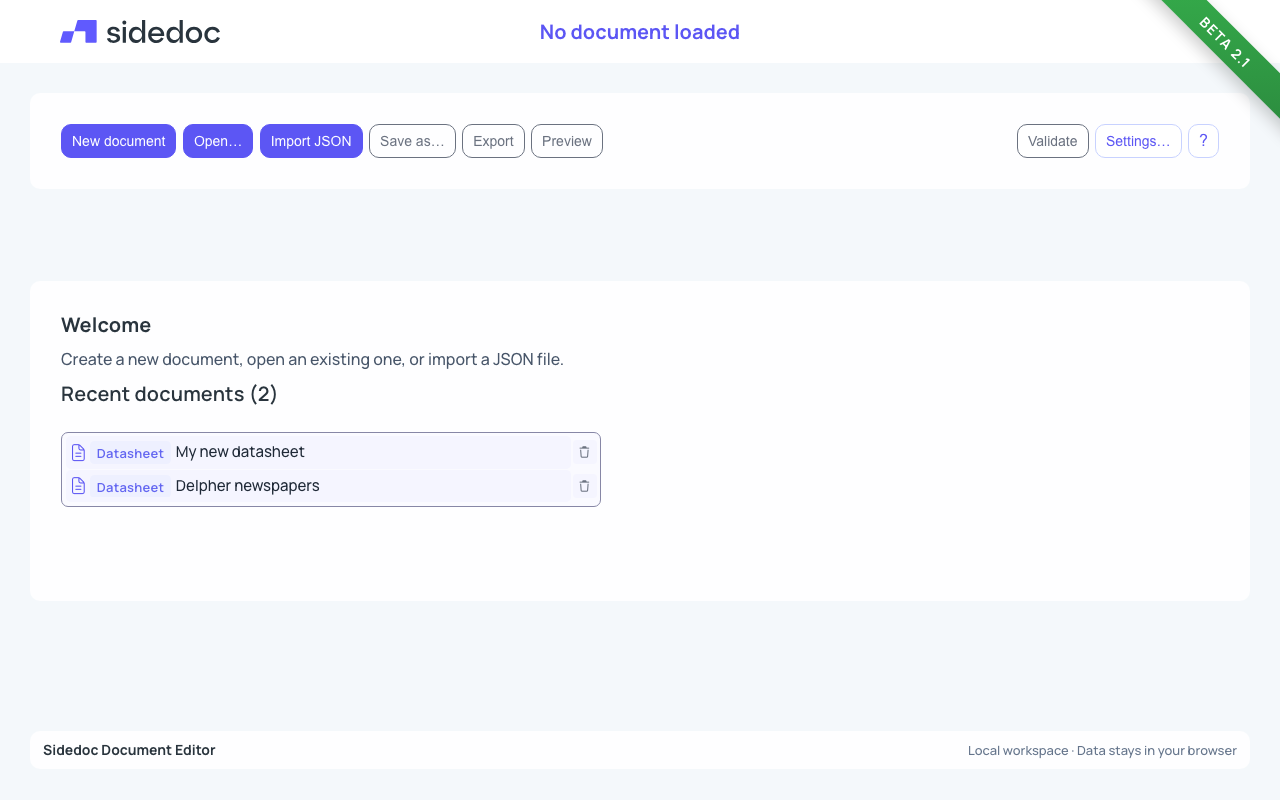
You start on the Welcome page. The row of buttons at the top is the toolbar. Once you have made documents, they appear under Recent documents: click one to open it, or click the bin next to it to delete it.
Create a document
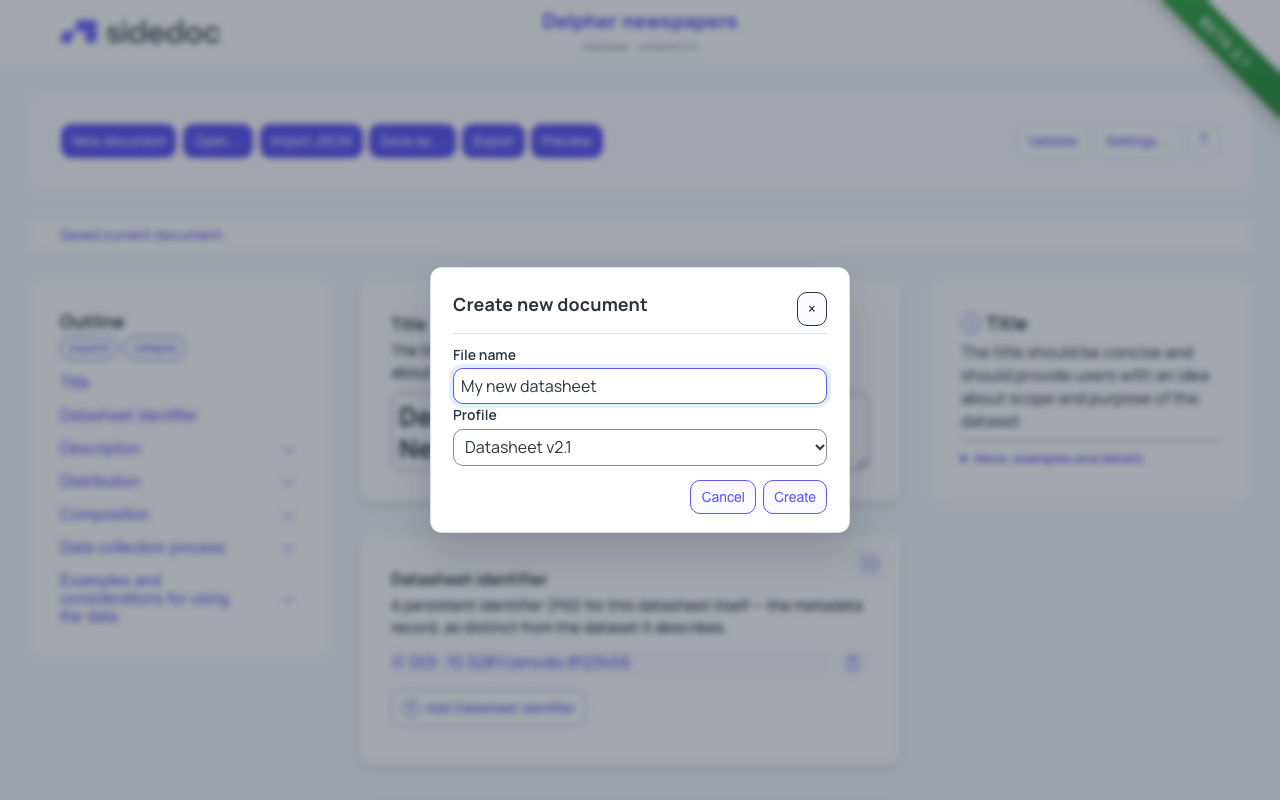
- Click New document.
- Under File name, type a name you will recognise, for example the name of the dataset.
- Under Profile, choose the kind of description you need. If you are unsure, keep Datasheet v2.1. See Profiles for the others.
- Click Create.
The empty form opens. There is no separate save step: SideDoc saves your work in the browser a moment after you stop typing. See Saving and your data.
TIP
You can't change the profile of a document after you have created it. If you picked the wrong one, create a new document.
The screen layout
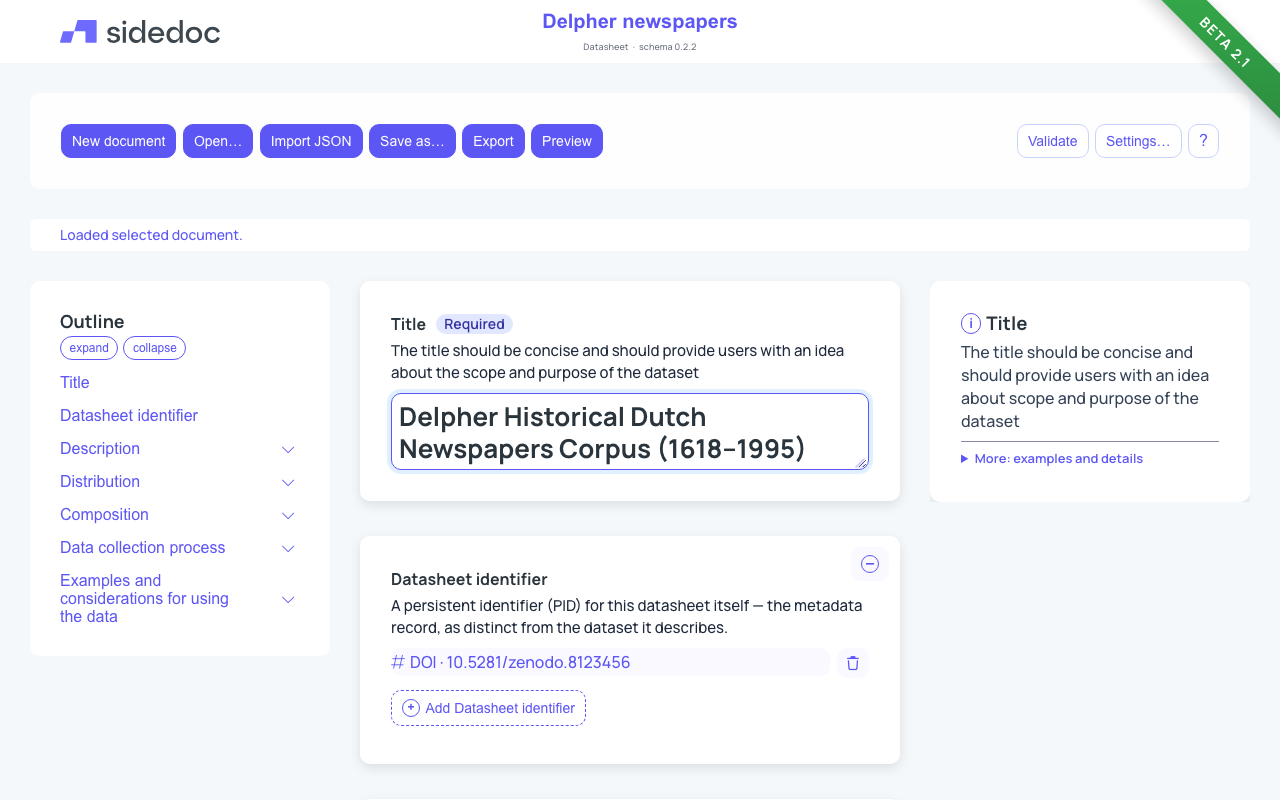
Header. The name of the open document, with its profile and schema version underneath. Click the name to rename the document. Click the SideDoc logo to go back to the Welcome page.
Toolbar. The main actions are on the left, Validate, Settings… and ? on the right:
| Button | What it does |
|---|---|
| New document | Create a new, empty document. |
| Open… | Open another document. |
| Import JSON | Open a document from a JSON file. See Importing. |
| Save as… | Make a copy of the open document under a new name. See Saving. |
| Export | Download the document as JSON, HTML, PDF, Markdown or JSON-LD. See Exporting. |
| Preview | Show the document as a formatted datasheet. |
| Validate | Check the document for missing or incorrect information. See Checking your document. |
| Settings… | Appearance, backups and Reset. See Settings and backups. |
| ? (Help) | Show a short summary of the toolbar buttons. |
Status line. Under the toolbar, a short message tells you what just happened, such as "Saved current document." or "Validation completed: 4 issue(s)."
Outline (left). The sections and fields of the document. Click a name to jump to that part of the form. Use the arrow next to a section to show or hide its fields, or use expand and collapse to open or close all of them at once.
Form (middle). The fields you fill in. Each field has a name, a short explanation, and a place to enter information. See Filling in the form.
Help panel (right). Longer guidance for the field you are working in. It changes when you move to another field. See Getting help in the form.
On a small screen
On a narrow window, a tablet or a phone, the outline and the help panel move out of the way so that the form gets the full width. Two buttons at the bottom of the screen bring them back:
- Outline slides the outline in from the left.
- Help slides the help panel in from the right.
Tap the same button again, or tap the dimmed form, to close the panel.
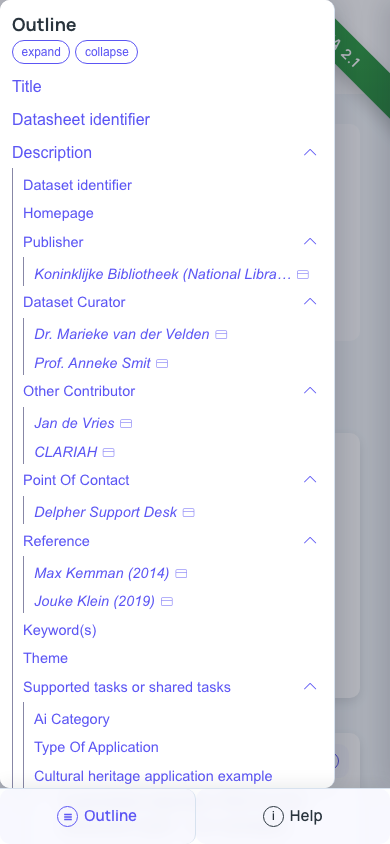
On a medium-sized window only the help panel is hidden; the Help button at the bottom brings it back.
Tips
- Work from top to bottom. The required fields are marked Required.
- You don't have to finish in one go. Close the browser and come back later: your documents are still there, as long as you use the same browser on the same computer. To continue elsewhere, see Using SideDoc on more than one computer.
- To try SideDoc out before describing a real dataset, import an example document and look at how its fields are filled in. See Importing.