Settings and backups
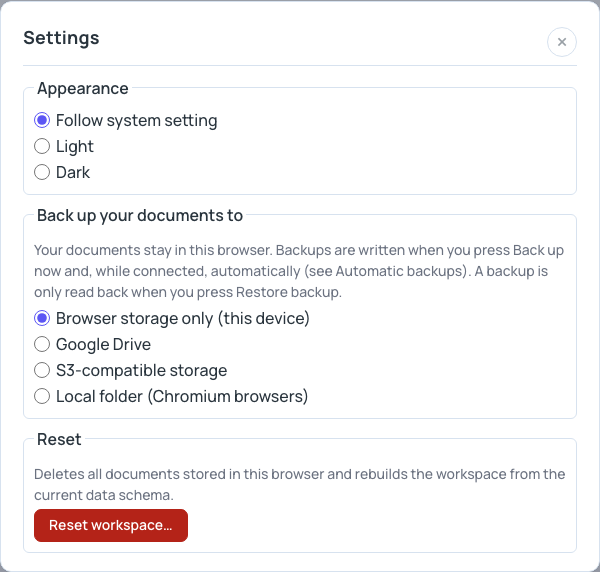
The Settings… button at the right end of the toolbar, between Validate and ? (Help), opens the Settings window. It has three sections:
- Appearance: light, dark, or the same as your computer.
- Back up your documents to: keep backups of your workspace in Google Drive, an S3-compatible bucket or a folder on your computer.
- Reset: delete all documents in this browser and start again.
Close the window with the × button or Esc.
Appearance
Choose Follow system setting, Light or Dark. Follow system setting follows your computer and changes along with it. SideDoc remembers your choice in this browser. It is not part of your documents or of a backup.
Backups
Your documents always live in this browser. That is the copy you edit, and SideDoc saves it automatically (see Saving and your data). A backup is a copy of your whole workspace in a second place: every document in this browser, the profiles they use, and the time of the backup.
SideDoc writes a backup when you click Back up now, and automatically while you are connected (see Automatic backups). It reads a backup only when you click Restore backup…. Nothing is synchronised in the background, and a backup never changes your documents by itself.
Choose where backups go
Under Back up your documents to, choose one of:
| Choice | Where the backups go |
|---|---|
| Browser storage only (this device) | Nowhere. This is the default. Your documents stay in this browser only. |
| Google Drive | A hidden app folder in your Google Drive. You sign in with your Google account. The files do not show up in your Drive's file list. |
| S3-compatible storage | A bucket of your own or of your organisation, at a provider such as AWS S3, Cloudflare R2, MinIO, Scaleway or OVHcloud. |
| Local folder (Chromium browsers) | A folder on your computer or on a network drive. Works in Chrome, Edge and other Chromium-based browsers, not in Firefox or Safari. |
Not every choice works on every installation
The people who run your SideDoc installation decide which backup places are switched on. When one is not, the window shows Not connected with a message such as "Google Drive persistence is disabled.", and Connect does not work. In that case, choose another place, or keep copies with Export (see Exporting).
SideDoc does not remember the choice. After you reload the page or open SideDoc again, the window says Browser storage only (this device) and you connect again. Your connection details for a bucket are remembered, see below.
Connect
Pick the place, then click the connect button. The line at the top of the section says Connected or Not connected, followed by the reason when something went wrong.
- Google Drive: click Connect Google Drive and sign in with your Google account in the window that opens.
- Local folder: click Connect & Choose Folder and choose a folder. Your browser asks whether SideDoc may change files in it; allow it. Use Choose folder… later to switch to another folder.
- S3-compatible storage: see Connect a bucket.
Disconnect stops the backups. It does not delete anything.
Connect a bucket
Ask whoever manages the bucket for an endpoint URL, a bucket name, the region, and an access key (an access key ID and a secret access key). Then:
- Click Settings….
- Under Back up your documents to, choose S3-compatible storage.
- Fill in Endpoint, Bucket, Region (leave it empty if you were not given one), Access key ID and Secret access key.
- Tick Use path-style addressing only if the bucket manager tells you to.
- Click Connect S3 Bucket.
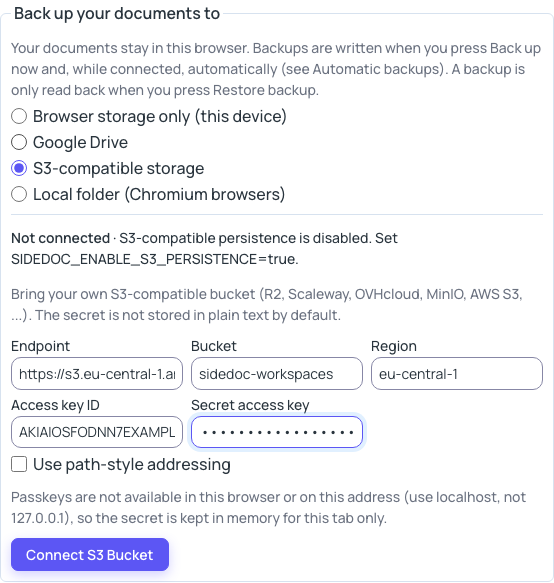
SideDoc remembers the endpoint, bucket, region, access key ID and the path-style choice in this browser, so next time you only click Connect S3 Bucket. How the secret access key is kept depends on your browser:
- With a passkey. If your browser supports passkeys, Connect S3 Bucket creates one (for example with Touch ID, Windows Hello, your phone or a security key) and stores the secret encrypted with it. Next time, leave Secret access key empty: Connect asks for the passkey once, and then no more until you reload the page. To change the secret, type the new one and connect.
- Without a passkey. SideDoc keeps the secret only while the tab is open. After a reload you type it again.
The window tells you which applies under the connection fields. Your browser talks to the bucket directly. Your documents do not pass through a SideDoc server, but anyone with access to the bucket can read them.
Back up now
Once you are connected, click Back up now to make a backup straight away, for example at the end of a working session or before you make big changes. Backups you make with this button are never deleted by SideDoc.
Automatic backups
While you are connected, SideDoc also makes backups by itself. Both are on until you switch them off:
- Every 5 minutes, when documents changed (keeps the last 20)
- Once a day, when documents changed (keeps the last 14)
SideDoc only backs up when something changed since the last backup, and only while SideDoc is open in your browser and connected. When there are more than 20 automatic or 14 daily backups, the oldest of that kind is deleted. The line under the check boxes tells you when the last automatic backup was saved, or why it failed.
Restore a backup
- Connect to the place that holds the backup.
- Under Backup to restore, choose a backup. The newest is at the top. Each entry says what kind it is (Manual backup, Automatic backup or Daily backup) and when it was made. Click Refresh list if a recent backup is missing.
- Click Restore backup….
- Read the warning, then click Replace documents with backup, or Cancel.
Restoring replaces all documents in this browser with the ones in the backup. Documents that are not in the backup are deleted, and changes since the backup are lost. If you might need what is in the browser now, click Back up now first.
A backup made with an older version of SideDoc is upgraded when you restore it. The window then tells you how many documents were upgraded, and which ones are read-only because they could not be upgraded safely.
Move your backups to another place
If you switch from one place to another while you are connected, for example from Local folder to S3-compatible storage, SideDoc offers to copy the backups. After you connect to the new place, click Copy backups, or Not now. Backups that are already in the new place are skipped, and nothing is deleted from the old one.
Using SideDoc on more than one computer
Backups let you continue in another browser or on another computer:
- On the first computer, connect and click Back up now.
- On the second computer, connect to the same place and restore that backup.
- When you finish there, click Back up now. Back on the first computer, restore the newest backup before you continue.
SideDoc does not merge or compare. It does not warn you when the backup you restore is older than your documents, or when someone else made a backup in the meantime. Work in one place at a time: if you edit in two browsers without restoring in between, one set of changes is lost.
Reset
Reset workspace… deletes all documents in this browser and gives you an empty workspace. Use it when something has gone wrong, or when you want to start from scratch. It does not delete your backups.
When you click it, the Settings window closes and SideDoc asks you to choose:
- Download backup, then reset downloads all your documents as JSON files in one ZIP file (
sidedoc-documents-backup.zip) and then resets. - Reset (delete documents) deletes everything without a backup.
- Cancel keeps everything.
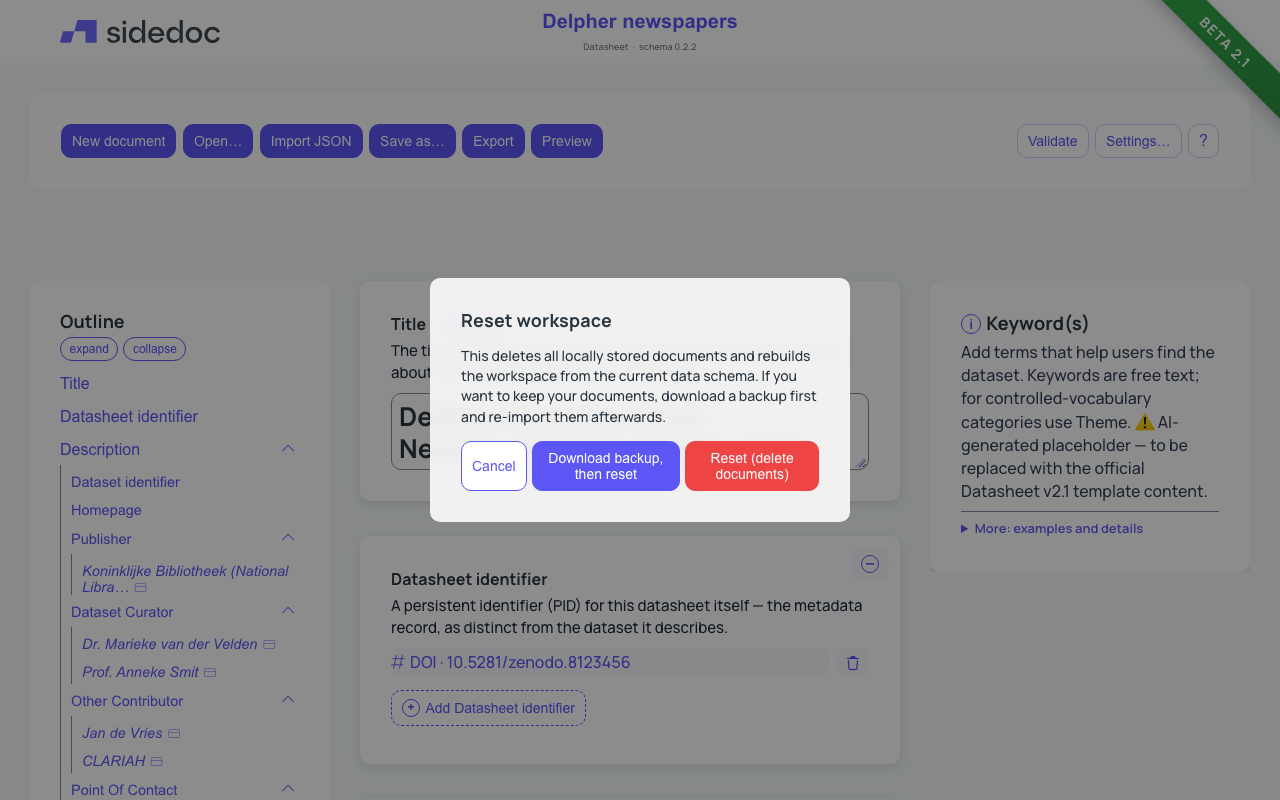
After a reset, you can bring your documents back by restoring a backup, or by importing the JSON files from the ZIP file one at a time.