Filling in the form
The form is built from a small number of field types. Once you know them, you can fill in any profile. This page explains each one.
Required and optional fields
Fields marked Required must be filled in before the document is complete. All other fields are optional.
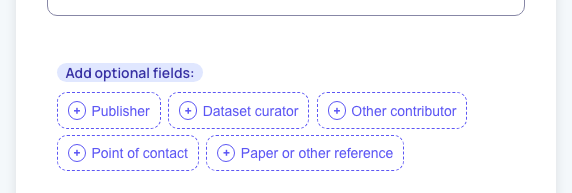
Optional fields that you have not used yet are not shown as empty boxes. Instead they are listed as buttons under Add optional fields. Click a button to add that field to the form. Hold your mouse over a button to see what the field is for.
To remove an optional field you no longer need, click the round minus button in the top right corner of the field. This removes the field together with everything in it. A section that still contains filled-in fields can't be removed this way: remove or empty its fields first.
Text
Short text, such as a title, goes in a plain text box. Type and move on; SideDoc saves automatically.
Longer text, such as a description, has a formatting bar above it with buttons for headings, bold, italic, lists, tables and links. Under the text box you can switch between two modes:
- Formatted shows the text as it will look.
- Markdown shows the same text as Markdown, a plain-text way of writing formatting. Use whichever you prefer; both edit the same text.
Several values in one field
Many fields accept more than one value, for example keywords, homepages or curators. These fields have an Add button under the existing values, such as Add keyword(s) or Add agent.
- Click the Add button. A new, empty entry appears.
- Click the entry to fill it in.
- To remove an entry, click the bin next to it and confirm with Remove.
You can't change the order of entries. If the order matters, remove the entries and add them again in the right order.
Web addresses and e-mail addresses
A web address (URL) field shows the link text, with a button next to it to open the address in a new tab. Click the entry to change the link text or the address itself.
E-mail fields work the same way. You can type the address as it is (name@example.org); you don't need to add mailto:.
Identifiers
Identifier fields, such as Datasheet identifier and Dataset identifier, are for persistent identifiers like DOIs and Handles.
- Click the entry, or Add …identifier to make a new one.
- Choose the kind of identifier in the list: DOI, Handle, ARK, URN:NBN, PURL, w3id or Custom….
- Type the identifier itself, without the web address in front of it. For a DOI that is, for example,
10.5281/zenodo.8123456.
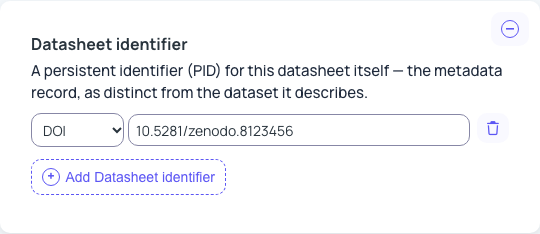
SideDoc builds the full link from the type and the value.
Dates and periods
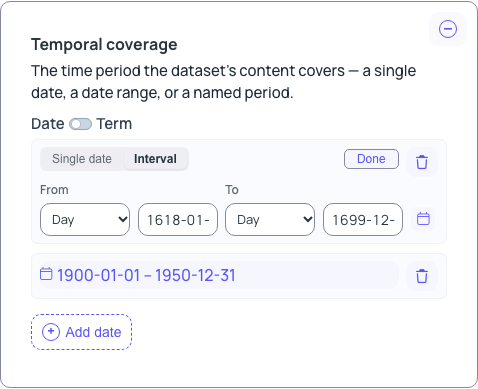
Date fields can hold a single date or a period.
- Click the date, or Add date.
- Choose Single date or Interval (a period with a start and an end).
- For each date, choose how precise it is: Year, Month or Day. A period like "the 17th century" is best entered as an interval from year 1600 to year 1699.
- Type the date, or click the calendar button to pick it.
- Click Done.
Choices from a fixed list
Some fields offer a short, fixed list of answers, for example Dataset category (Content, Metadata, or Content and Metadata). Click the field and choose an answer. Clear selection empties the field again.
Terms from a vocabulary
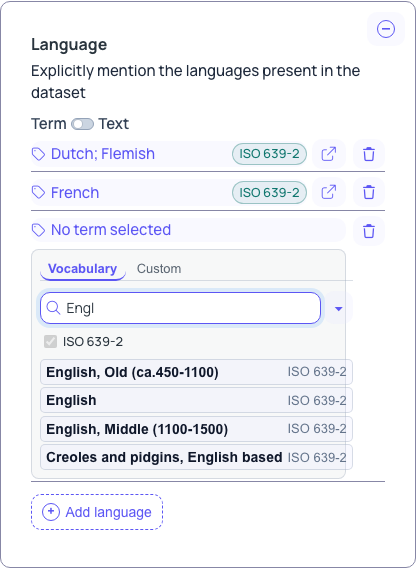
Fields such as Language, Theme, Spatial coverage and Object type ask for a term: a word taken from an agreed list, called a vocabulary. Using a term instead of your own words means that computers, and people in other countries, understand exactly what you mean. Each chosen term shows the name of its vocabulary, such as "ISO 639-2", and a button to open the term's page on the web.
To add a term:
- Click Add term, then click No term selected.
- On the Vocabulary tab, start typing in the search box. Matching terms appear underneath.
- Click the term you want.
To see the whole list instead of searching, click the arrow next to the search box (Show all terms). If a field can search more than one vocabulary, tick the ones you want to search.
When the term you need is not in the list
You have two options.
- Custom term. Open the Custom tab and type a label and, if there is one, the web address of the term in another vocabulary. Not every field allows this; if there is no Custom tab, the field only accepts terms from its list.
- Free text. Many term fields have a switch above the values, labelled for example Term / Text. Switch it to Text to describe the value in your own words instead.
TIP
Use a term where you can, and free text only where no suitable term exists. Terms make your datasheet much easier to search and to combine with other datasheets.
People and organisations (agents)
Fields such as Publisher, Dataset curator, Other contributor and Point of contact ask for an agent: a person or an organisation. Each agent is shown as one line with the name and role. Click it to open the details.
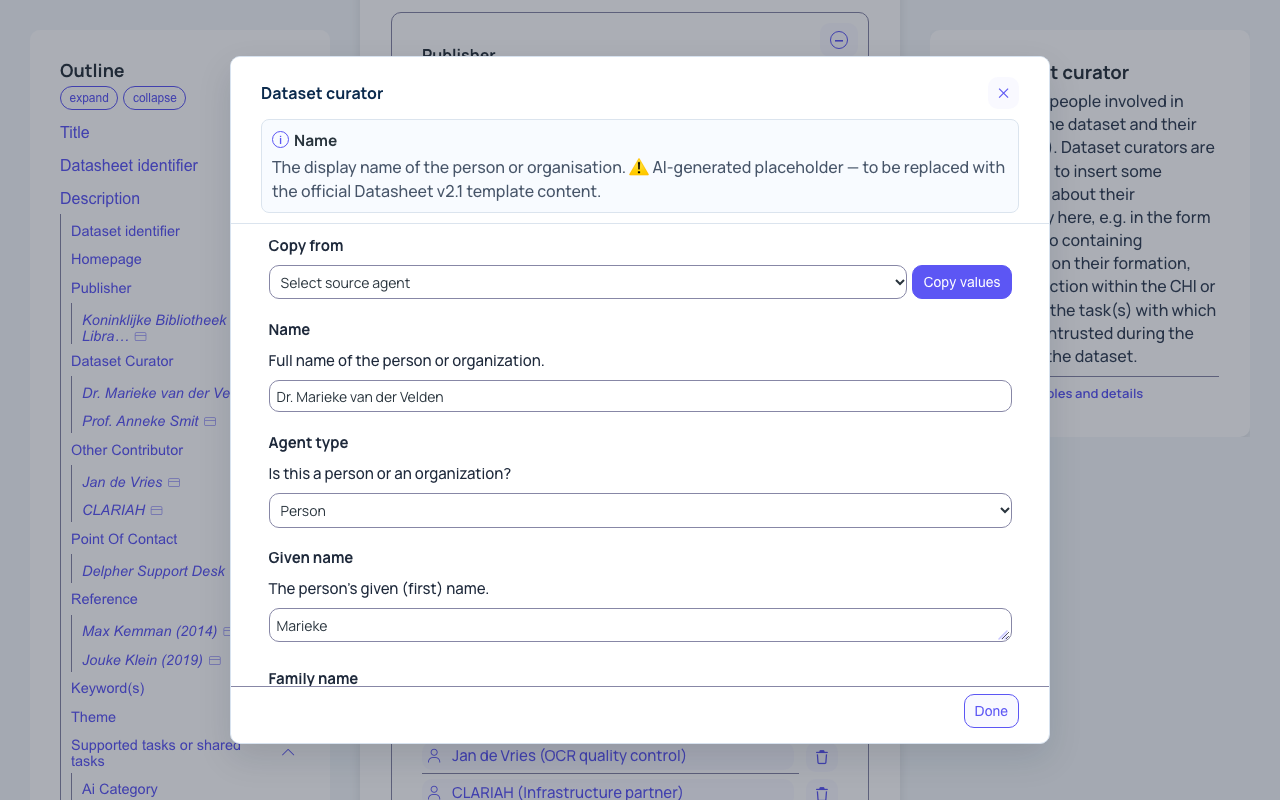
- Click Add agent, then click the new entry.
- Under Agent type, choose Person or Organization. The fields below change to match.
- Fill in the Name. For a person, also fill in Given name and Family name.
- For a person, add the organisation they work for under Affiliation.
- Under Role, add what this agent did for the dataset, for example "Digital collections curator". You can pick a role from a list or switch to Text and type it.
- Add a Homepage, an E-mail address, an address, and an Identifier such as an ORCID (for people) or a ROR ID (for organisations) where you have them.
- Click Done.
Copy from at the top of the window copies the details of an agent you have already entered elsewhere in the document. Choose the agent, then click Copy values. This saves retyping the same organisation in several fields.
Some agent fields also have a switch to enter the agent as Formatted text instead, for example when you only have a name.
References and citations
Paper or other reference and Citation information hold bibliographic references. Each reference is shown as a formatted citation. Click it to open the details.
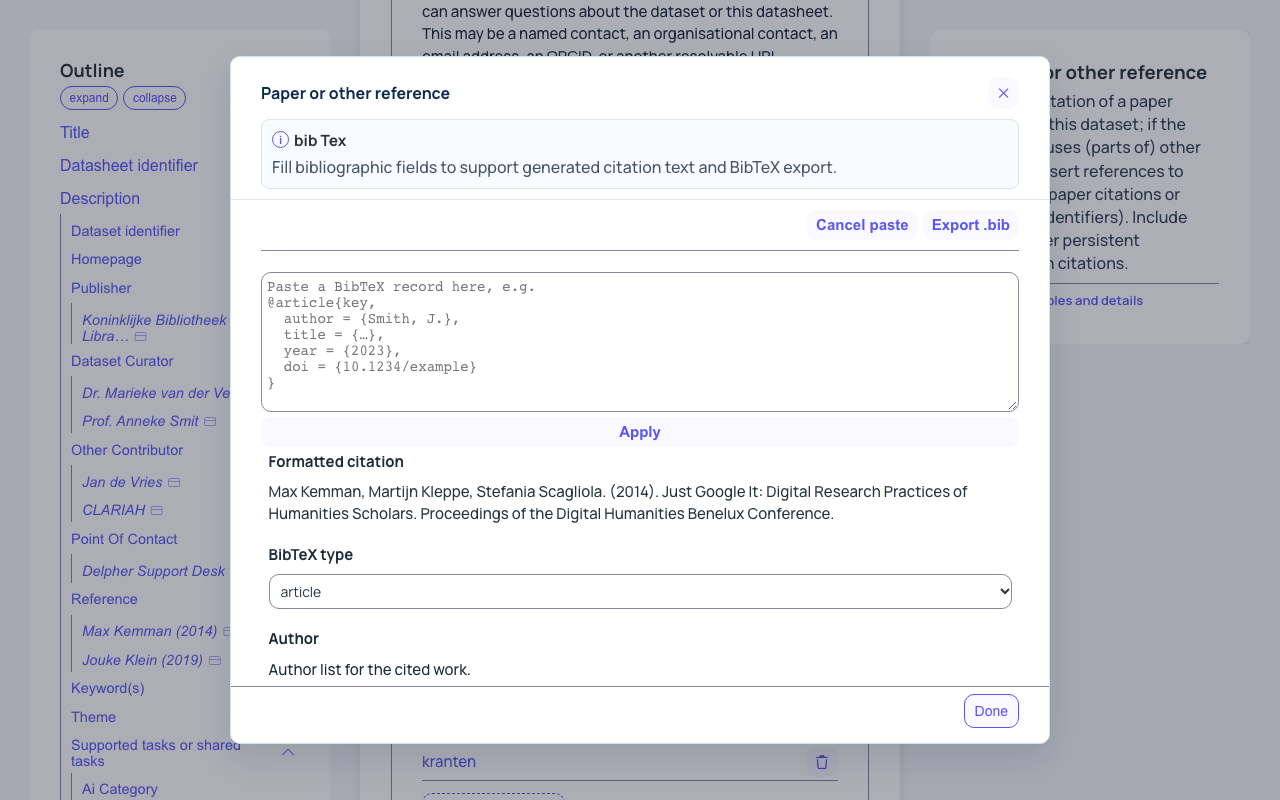
You can fill in a reference in two ways.
Paste a BibTeX record. If you have the reference in BibTeX, for example from Zotero, Google Scholar or a publisher's website:
- Click Import BibTeX….
- Paste the record into the box.
- Click Apply. The fields below are filled in for you.
Type the details. Choose the BibTeX type (for example article, book or dataset) and fill in the fields that apply: Author, Title, Year of publication, DOI and so on. You only need the fields that make sense for this kind of publication.
The Formatted citation at the top updates as you type. Export .bib downloads the reference as a BibTeX file. Click Done when you are finished.
Larger entries
Some entries are themselves a group of fields, for example a Distribution (one way to get the dataset, with its own licence, format and access URL). These are shown as a single line. Click the line to open its fields in a separate window, and click Done to return to the form.
Tips
- The Remove buttons ask for confirmation, but there is no undo. If you are about to make big changes, make a copy first with Save as….
- Fields with a switch (such as Term / Text or Agent / Formatted text) accept two kinds of value. Prefer the structured kind (term, agent, reference) where you can.
- Not sure what a field wants? Look at the help panel on the right, and open More: examples and details for examples. See Getting help in the form.