Checking your document
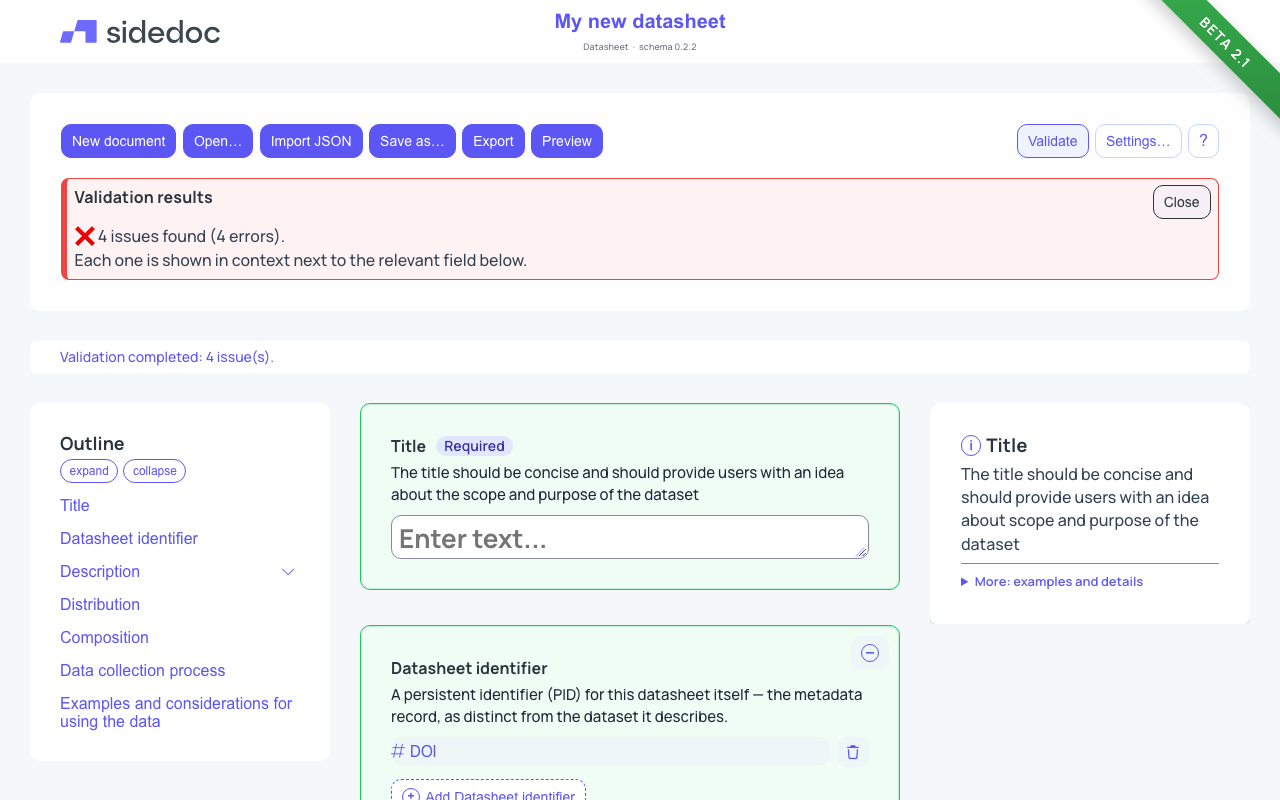
Validate checks your document against the rules of its profile: are all required fields filled in, and is every value in the right form? Run it before you export or share a document.
Run a check
- Click Validate near the right end of the toolbar.
- Read the summary in the Validation results box under the toolbar.
- Scroll through the form. Fields with problems have a red border and a message underneath.
- Fix the problems. While the results box is open, SideDoc checks again each time you change something, so the colours and messages update as you work.
- Click Close in the results box when you are done. The colours disappear from the form.
What the summary means
| Summary | Meaning |
|---|---|
| No issues found. This document looks complete. | All rules are met. The document is ready to export. |
| n issues found (n errors) | Something required is missing or a value is not allowed. Fix errors before you publish the description. |
| n issues found (n warnings) | Something is not quite right but the document can still be used. Check whether you can improve it. |
The box is green when there are no issues, yellow when there are only warnings, and red when there is at least one error.
Finding the fields with problems
Each problem is shown next to the field it belongs to:
- A red border marks a field or section that contains an error.
- A yellow border marks a warning.
- A green border means the field is fine.
- A message in a red box under the field says what is wrong.
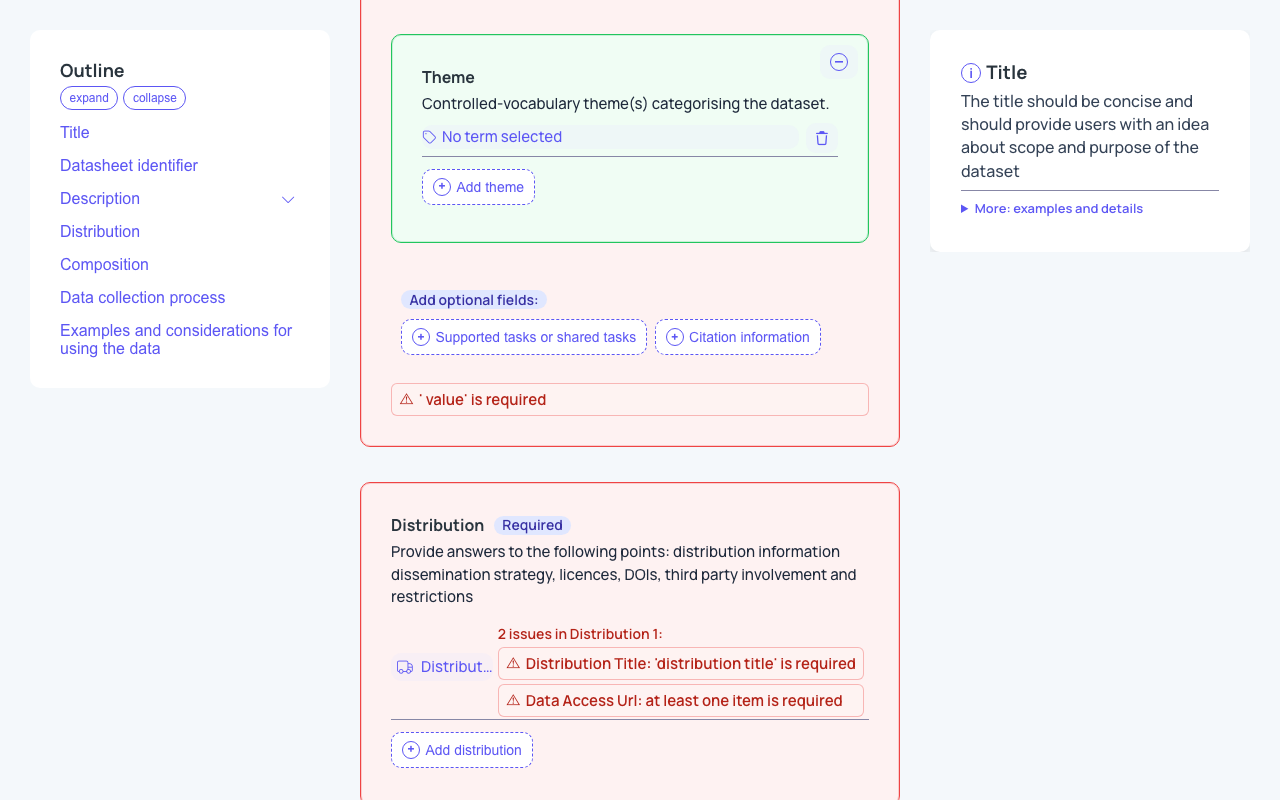
A red section can contain the problem in one of its fields, so look inside it. Use the outline on the left to move between sections quickly.
If the problem is inside an entry that opens in a separate window, such as a distribution, an agent or a reference, the field that holds the entry is marked. Click the entry to open it and find the field that needs attention.
Common messages
| Message | What to do |
|---|---|
| … is required | A required field, or a required part of a field, is empty. Fill it in. |
| A message about a pattern or format | The value does not have the expected form, for example a date that is not written as YYYY-MM-DD, or an identifier with the wrong shape. Open More: examples and details in the help panel to see the expected format. |
| A message about a value not being allowed | The value is not one of the choices the field accepts. Choose a value from the list. |
Some messages still use the internal name of a field rather than the name you see in the form. If a message is unclear, look at the field it is attached to and at that field's help.
Optional sections you have not used
SideDoc only checks optional sections that contain something. An empty optional section does not cause errors, so you don't need to remove it.
Documents made with an older version
If a document was made with an older version of a profile, the header shows a Convert to button. If SideDoc can no longer edit that version, a notice above the form says so and the form is locked. Click Convert to … to edit to make an upgraded copy. The original is kept.
Tips
- Validate early, not only at the end. On a new document it shows you at once which fields are required.
- A document without errors can still be a weak description. Validation checks the form of your answers, not whether they are helpful. Use the help panel and the examples to write good answers.